
 By Alpit Patel and the aibrevo team · September 16, 2026 · Updated October 13, 2026 · 15 min read
GoHighLevel Workflow Not Triggering? A Systematic Troubleshooting Guide
A step-by-step process for diagnosing why a GoHighLevel workflow isn't firing: toggle state, trigger events, filters, re-entry settings, if/else branches, delays, and activity logs.
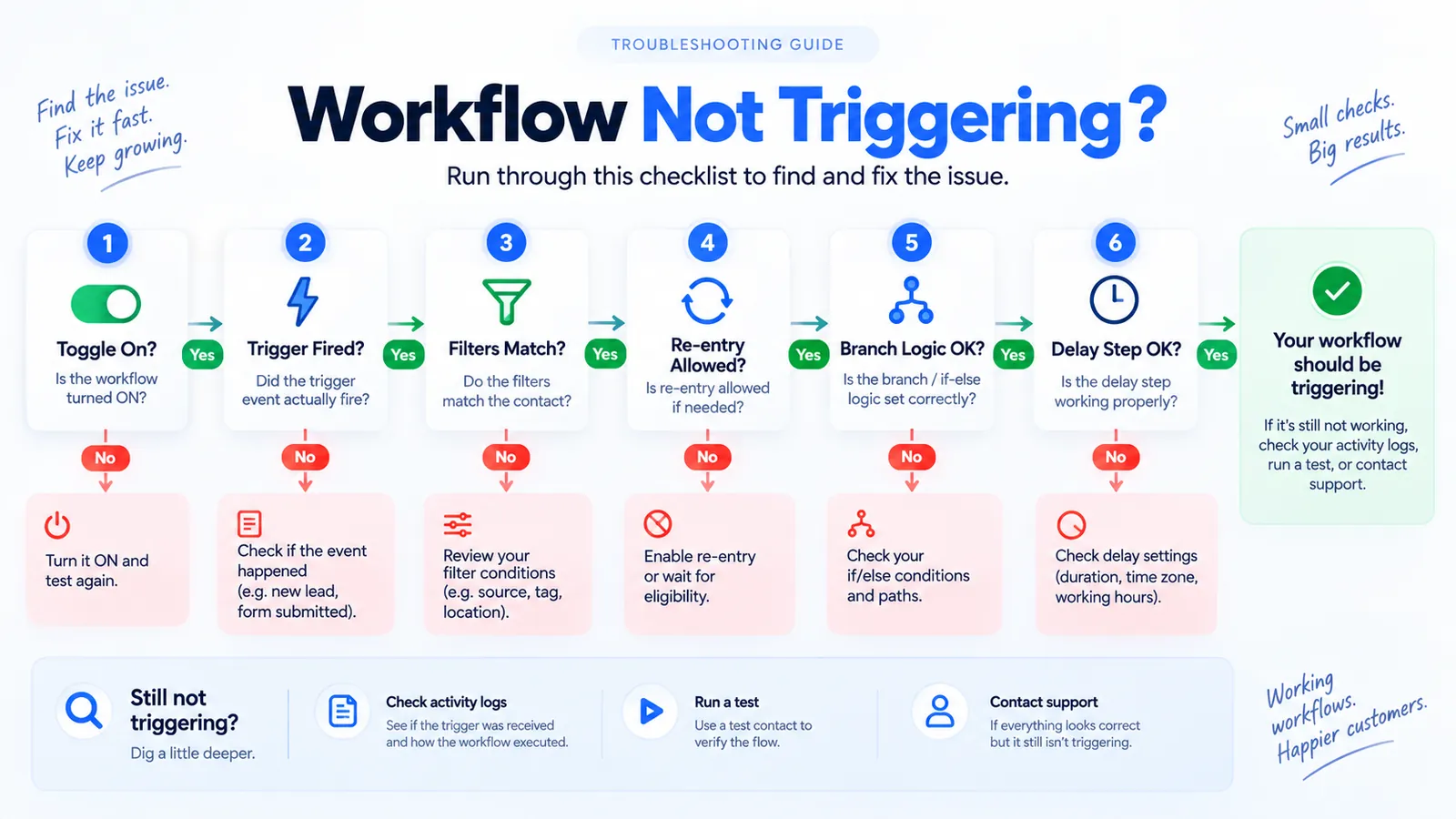
Part of the guide: GoHighLevel problems: find the fix by symptom
Key takeaways
- The single most common cause of a silent workflow is a mismatch between what the trigger is configured to listen for and what actually happened to the contact: a tag trigger set to 'Tag Added' won't fire if the tag was already present before the workflow was published.
- Re-entry settings, not the trigger itself, are the usual explanation when a workflow fired once for a contact and then goes quiet on every subsequent qualifying event: if re-entry is off, that contact is permanently done with the workflow until manually removed.
- Filters inside the trigger and filters inside if/else branches are evaluated separately, so a contact can correctly satisfy the trigger and still fall out of the workflow at the first branch if branch conditions reference a field that was never populated.
- The workflow's own Enrollment History and Execution Logs (not the contact's activity tab) are the fastest way to tell whether a contact was ever evaluated against the trigger at all, versus evaluated and filtered out, versus enrolled and stuck on a delay or action step.
- A workflow left in Draft status will accept manual test runs from the builder but will not fire from live triggers; this single toggle explains a large share of 'it worked in testing but not for real contacts' reports.
- Escalating to GoHighLevel support is worth doing only after ruling out configuration causes locally, and support tickets move faster when they include the specific contact ID, workflow ID, and a timestamp of the expected trigger event.
- An SMS action step that shows as 'executed' in Execution Logs can still fail to reach the contact if the sub-account's A2P 10DLC campaign isn't registered, since U.S. carriers now block 100% of unregistered business SMS at the network level rather than surfacing an error inside the workflow itself.
A GoHighLevel workflow that isn’t triggering is rarely a platform fault. Usually one specific setting, out of a dozen possible ones, doesn’t match what you assumed it did: the toggle is still on Draft, the trigger event doesn’t match what actually happened to the contact, a filter or if/else branch is silently routing contacts away from the action steps, or re-entry is turned off so a contact who already ran through the workflow once is permanently excluded. The fix is almost always quick once you find the mismatch, and finding it quickly means checking things in a set order.
If several things look broken at once, rule out an outage first: is GoHighLevel down.
This guide walks through that order: publish status, trigger event matching, filters, re-entry settings, branch logic, delay steps, and the two log views that tell you exactly where a contact got stuck. If you’re building or rebuilding GoHighLevel automations as part of a broader setup, the GoHighLevel implementation services page covers how a properly tested automation layer fits into a full build.
1. Toggle state
Check whether the workflow is Draft, Published, or Paused. A Draft workflow still runs manual test enrollments from the builder, which is exactly what makes this the most deceptive failure: it looks live because tests pass, but no live trigger event will ever enroll a real contact until it's Published.
2. Trigger event match
Confirm the trigger type (tag added, stage changed, form submitted) actually matches what happened to the contact, in the right order. A tag applied before the workflow went live, or a stage change that happened through a bulk import instead of a live action, never fires the discrete event the trigger is listening for.
3. Filters
Filters attached to the trigger are evaluated separately from the trigger event itself. A contact who satisfies the trigger but fails a filter, often because a referenced custom field or tag is blank or misspelled, is silently excluded with no error message.
4. Re-entry settings
If re-entry is off, a contact who already ran through the workflow once is permanently done with it, no matter how many more times they'd otherwise qualify for the trigger. This is the usual explanation for a workflow that worked for the first contact and then goes quiet.
5. Branch logic
If/else branches apply their own condition checks, independent of the trigger. A contact can pass the trigger cleanly and still exit at the first branch if the branch checks a field that was never populated for that contact, routing them down an "else" path with no further action.
6. Delay step
A delay set in the wrong unit (days instead of hours), a time-of-day restriction tied to the sub-account's timezone, or a delay referencing a blank date field can all hold a contact indefinitely without throwing any visible error.
Is the workflow actually published?
Before checking anything else, confirm the workflow status shown at the top of the builder. GoHighLevel workflows have three relevant states: Draft, Published, and Paused (sometimes shown as inactive). Only a Published workflow evaluates live trigger events and enrolls real contacts.
This sounds too basic to matter, but it is common because Draft workflows still let you run manual test enrollments from inside the builder. A builder tests a workflow by manually adding a test contact, watches it run correctly, and assumes it’s live, without noticing the status toggle never got flipped to Published. The workflow behaves perfectly for manual tests and does nothing for actual leads.
Check this first because it eliminates an entire category of possible causes in a few seconds. If the workflow shows Published and contacts still aren’t enrolling, move to the trigger configuration itself.
Does the trigger event actually match what happened?
The next most common cause is a mismatch between the trigger’s configuration and the real-world event it’s supposed to catch. GoHighLevel offers trigger types including tag added, tag removed, form submitted, pipeline stage changed, appointment booked, and several others, and each one listens for a specific event, and a contact’s current state doesn’t count.
The classic version of this mistake: a workflow is set to trigger on “Tag Added,” but the contact already had that tag applied before the workflow was published or before the automation step that’s supposed to apply it ran. Since the tag wasn’t newly added after the trigger went live, the event never fires for that contact, even though the contact currently has the tag. The same logic applies to pipeline stage triggers: a contact moved into a stage before the trigger existed, or moved there through a bulk import rather than a stage-change action, may not generate the discrete “stage changed” event the trigger is listening for.
Verify this by checking the exact trigger type and its configured value against what actually happened, in what order, for a specific test contact. If the tag or stage change happened before the workflow went live, or happened through an import rather than a live action, that’s very likely your answer.
Are filters inside the trigger step silently excluding the contact?
Beyond the trigger event itself, most trigger steps allow additional filter conditions layered on top, such as requiring a specific tag, a particular pipeline, or a custom field value. These filters are evaluated as a separate condition from the trigger event, and a contact who satisfies the event but fails a filter will not enroll.
A frequent source of confusion here is a filter referencing a custom field that isn’t populated for every contact entering the funnel. If a filter checks “Lead Source equals Facebook” and a batch of contacts came in through a different form where that field was never mapped, those contacts fail the filter silently. There’s no error message; the contact doesn’t enroll, and from the outside it looks identical to the trigger itself not firing.
Review each filter condition attached to the trigger individually, and check a real contact record to confirm the referenced field or tag is actually present and spelled the way the filter expects. Field name mismatches (an extra space, a different capitalization from an old snapshot) are a common cause of filtered enrollments.
Checking a single contact only tells you about that one contact’s data, which can be misleading if the field happens to be populated for them but not for the broader batch. Pull three or four contacts who should have entered the workflow around the same time and compare the referenced field or tag across all of them. If the field is populated for some and blank for others, that inconsistency is usually the problem, and it often traces back to different lead sources or forms feeding the same pipeline without mapping to the same custom field.
Why does a workflow fire once and then go silent?
Re-entry is a setting people often misread, and it’s the usual explanation for a workflow that clearly worked for the first contact or two and then appears to stop working for everyone after.
Every workflow has a re-entry setting in its Settings tab, controlling whether a contact who has already been enrolled (or already completed the workflow) can be enrolled again when they satisfy the trigger a second time. If re-entry is set to off, once a contact goes through the workflow, that contact is done, permanently, regardless of how many more times they’d otherwise qualify for the trigger. This is often the correct behavior (you don’t want a welcome sequence firing every time a returning customer re-tags themselves), but it becomes a troubleshooting trap when a builder tests a workflow with the same contact repeatedly and can’t understand why the second or third test run does nothing.
Fix this during testing by using a fresh test contact for each test run, or by explicitly setting re-entry to allow multiple entries while testing, then reverting it to the intended production setting once the workflow logic is confirmed. In production, decide re-entry deliberately based on what the workflow is for: a one-time onboarding sequence should typically block re-entry, while a review-request workflow tied to repeat appointments usually needs to allow it.
Do if/else branches apply their own logic, separate from the trigger?
Once a contact is enrolled, if/else branch steps inside the workflow apply additional condition checks, and these are evaluated independently of whatever got the contact into the workflow in the first place. A contact can correctly pass the trigger and any trigger-level filters, and still exit the workflow at the very first branch if the branch condition checks something that isn’t true, or isn’t populated, for that contact.
This shows up most often when a branch checks a custom field value (say, “appointment type equals consultation”) and the contact came in through a path where that field was never set. The branch doesn’t error; it just routes the contact down the “else” path, which may lead to an end step with no further action, making the workflow look like it did nothing.
Diagnosing this means opening the specific contact’s path through the workflow (covered below in Execution Logs) and checking exactly which branch they took and why. If contacts are consistently landing in an unexpected branch, the fix is either correcting the branch condition or fixing the upstream step that’s supposed to populate the field the branch depends on.
Why does a delay step create a silent holding pattern?
A delay step that appears to do nothing is often working as configured, which may not be what the builder expected. Delay steps can be set in minutes, hours, or days, and a duration typo (days instead of hours) can hold a contact for what looks, from the outside, like indefinite inaction.
Delay steps can also be configured to resume execution only during specific business hours or at a specific time of day, based on the sub-account’s configured time zone. A contact who hits the delay step outside those hours will wait until the next valid window, which can look like a stalled workflow if the tester isn’t aware the time restriction exists. Confirm both the duration and any time-of-day restriction, and confirm the sub-account’s time zone setting matches what’s actually expected.
If a delay step references a specific date field (for example, “wait until appointment date”) rather than a fixed duration, an empty or malformed date field for that contact can cause the delay to behave unpredictably rather than throwing a visible error.
How do you use Enrollment History and Execution Logs before guessing further?
GoHighLevel provides two views inside the workflow builder that are more useful for diagnosis than checking a contact’s individual activity tab: Enrollment History and the per-contact Execution Log.
Enrollment History, accessible from the workflow’s own menu, lists every contact who was evaluated against the trigger, whether they enrolled, and if not, why they were filtered out. This is the fastest way to answer the most important diagnostic question: was the contact ever evaluated at all? If a contact doesn’t appear in Enrollment History, the trigger event itself never fired for them, which points back to the trigger-matching and publish-status checks above. If the contact does appear but shows as filtered, the filters covered earlier are the likely cause.
For a contact who did enroll, the Execution Log for that specific contact shows exactly which step they’re on, which branch they took at each if/else, and how long they’ve been sitting on a delay step. This is the right tool for diagnosing the branch and delay issues covered above.
How do you run a clean test contact through the entire workflow?
Once the individual settings above have been checked, the most reliable confirmation is a controlled end-to-end test: create a fresh contact with none of the tags, field values, or pipeline history that could trigger unrelated automations, and manually walk that contact through the exact conditions the trigger is supposed to catch. Watch it through Enrollment History and the Execution Log in real time rather than waiting and checking later.
Testing with a fresh contact avoids the re-entry trap covered earlier and gives a clean read on whether the trigger, filters, branches, and delays behave as configured when nothing else about the contact’s history could be interfering. If a workflow behaves correctly for a clean test contact but not for real leads, the difference is almost always in the real leads’ existing tags, field values, or enrollment history.
When should you escalate to GoHighLevel support?
Configuration issues explain the large majority of workflows that appear not to trigger, which is why working through the checks above first, rather than opening a support ticket immediately, resolves most cases faster. Escalation is worth it when Enrollment History shows a contact was never evaluated despite a trigger event that clearly should have matched, since that can point to a platform-side delay in event processing or an issue with how a specific trigger type is registering events for that sub-account.
When escalating, include specifics: the workflow ID, the exact trigger configuration, a specific contact ID used for testing, and the timestamp of the event that should have fired the trigger. GoHighLevel’s help center documents expected behavior for each trigger type, which is a useful reference to confirm your configuration matches documented behavior before assuming it’s a platform bug rather than a setup issue.
Can an SMS action step “execute” and still never reach the contact?
Yes, and this is the failure mode that fools even experienced GoHighLevel builders, because Execution Logs show the SMS step as completed with no error attached. The gap sits outside the workflow entirely, in carrier-level A2P 10DLC compliance. As of February 1, 2025, major U.S. carriers moved from throttling unregistered business SMS to blocking it outright: 100% of unregistered 10DLC traffic is now dropped, with T-Mobile enforcing the most aggressively and silently dropping most unregistered messages rather than bouncing them back with a visible failure (Sendblue’s A2P 10DLC registration guide, 2026).
A workflow can be correctly configured, triggered, enrolled and executed on every step, and the text message still never lands, because the sub-account’s A2P campaign isn’t registered or was rejected. If a workflow’s SMS step is confirmed as “executed” in the Execution Log but contacts report never receiving anything, checking A2P registration status in Settings > Phone Numbers should happen before spending more time re-auditing the workflow itself. The A2P 10DLC registration rejected guide covers how to diagnose and fix a rejected campaign specifically.
A contact who never replies to a manual call or email is a sales problem. A contact who’s enrolled, evaluated, and marked as having received a message they never got is a delivery problem. It needs a different fix, since nothing about the workflow’s trigger, filters, or branch logic will change carrier-level blocking. Teams that keep re-testing workflow logic against an A2P compliance gap tend to burn hours rebuilding a workflow that was never broken, while the fix, getting the campaign registered and approved, sits untouched in a different settings tab.
Even a fully registered campaign has a throughput ceiling. Carriers assign a trust score based on business verification depth and registration type, and that score sets a daily message cap: a small or newly registered business can be capped at roughly 2,000 messages a day, with messages beyond that cap queued or silently dropped rather than erroring inside the workflow. A workflow enrolling contacts faster than the campaign’s daily throughput allows will look like it’s randomly skipping some contacts, when what’s actually happening is the campaign hit its ceiling partway through the enrollment batch.
Are inbound webhook triggers and custom webhook actions a different kind of debugging problem?
Yes, because the point of failure can sit entirely outside GoHighLevel. An Inbound Webhook trigger only fires when an external system sends a correctly formatted request to that workflow’s unique webhook URL, per GoHighLevel’s own documentation on the Inbound Webhook Premium Trigger. If the external system’s request is misconfigured, points at the wrong URL, or fails silently on its own end, GoHighLevel never receives anything to evaluate, and Enrollment History will correctly show zero contacts, because there was no event to enroll on.
Diagnosing a non-firing inbound webhook starts on the sending side, not inside GoHighLevel: confirm the external system is actually sending a request, to the correct URL, with a payload matching the field structure the trigger expects. A payload with a differently named or missing field can be received without producing a usable trigger event, since the trigger needs to map incoming data to fields it recognizes.
The reverse case, a Custom Webhook action step that’s supposed to send data out to another system, has its own separate failure mode: the receiving system’s endpoint, authentication, or rate limits, not GoHighLevel’s side of the request. If a previously working outbound webhook integration stops working without any change on your end, note that GoHighLevel is deprecating the legacy X-WH-Signature header on September 1, 2026, in favor of X-GHL-Signature only, per HighLevel’s own webhook documentation. Any custom integration still verifying the old header needs to switch before that date or its signature verification, and therefore the integration, will start failing.
The bottom line on non-triggering workflows
A GoHighLevel workflow that isn’t firing has a defined checklist. Check publish status first, then confirm the trigger event matches what happened to the contact and in what order, then check filters at the trigger level, then re-entry settings, then branch logic and delay-step configuration, and use Enrollment History and Execution Logs to confirm exactly where a specific contact got stuck. Most of these are five-minute fixes once correctly identified. If workflows across an account are consistently built without clear re-entry and exit logic, that’s a broader pattern worth addressing at the build level, which the GoHighLevel agency setup guide covers in more depth alongside sub-account and snapshot architecture.