
 By Alpit Patel and the aibrevo team · September 17, 2026 · 16 min read
GoHighLevel Mobile App: What It Can and Can't Do
What the standard GoHighLevel iOS and Android app actually handles day to day — conversations, pipeline, calendar, reputation — and the specific desktop-only tasks it still can't touch, sourced from HighLevel's own documentation.
Key takeaways
- The standard GoHighLevel app covers conversations, pipeline/opportunities, calendar, reputation management, contacts, and invoicing — five of the platform's core daily jobs, per HighLevel's own Mobile Apps Overview documentation.
- Workflow creation and editing is documented as desktop-only. You can add a contact to an existing workflow from mobile, but you cannot build or modify the workflow itself there.
- Mobile App v4.0.0 replaced left-hand navigation with a four-category App Drawer and added a Kanban-style drag-and-drop pipeline view, per HighLevel's Revamped Mobile App Experience documentation.
- The standard app carries GoHighLevel's own branding. A fully white-labeled version, with your agency's name and icon in the App Store, is a separate $497/mo product covered in aibrevo's white-label guide, not a setting inside this app.
- Apple's App Store lists the HighLevel app at 4.5 out of 5 stars from roughly 3,700 ratings as of this writing — useful as a directional signal, not a guarantee of any individual agency's experience.
- Some v4.0.0 features rolled out gradually: widget customization and full Universal Search coverage across all modules were still catching up to the redesigned homepage as of HighLevel's own rollout documentation.
The GoHighLevel mobile app is not a shrunken copy of the desktop platform, and it’s not a full replacement for it either. It’s a working subset, built around the tasks that actually happen away from a desk — replying to a lead, moving a deal, checking today’s calendar, answering a review — while a specific, documented set of build-and-configure tasks stays locked to desktop. Most “GoHighLevel mobile app guide” content answers this vaguely, listing icon names without saying what breaks when you try to do real configuration work from a phone. This guide sources what the app actually does and doesn’t do from HighLevel’s own help documentation and app store listings, not recycled agency blog copy.
One distinction worth settling before anything else: this guide covers the standard GoHighLevel mobile app, the one every agency and sub-account gets by default, branded with GoHighLevel’s own name and icon. It is a different product from the fully white-labeled mobile app, a $497/mo add-on that puts your agency’s own name and icon in the App Store instead. If you’re trying to figure out whether your agency needs the branded version for a client-facing resale business, aibrevo’s GoHighLevel white label guide covers that product’s pricing, developer-account requirements, and app store submission process in full. This guide is about what the app itself actually does, regardless of whose logo is on it.
What does the GoHighLevel mobile app actually let you do?
The app covers five core jobs a GoHighLevel user does most days: managing conversations, tracking pipeline and opportunities, viewing and booking the calendar, handling reputation management, and working contact records. HighLevel’s own Mobile Apps Overview documentation frames the mobile experience as working alongside the desktop app rather than replacing it, and that framing matches what’s actually inside the app once you open it.
Conversations is the module most people open first. The unified inbox pulls SMS replies, email replies, and other message channels into a single feed, the same underlying inbox that powers desktop conversations rather than a separate mobile-only messaging system. You can read a thread, reply, and start a new conversation with an existing contact directly from the app. For an agency running client accounts, that means a missed-call text-back or an inbound lead reply doesn’t have to wait for someone to sit down at a laptop — the reply infrastructure is fully present on mobile, not a lite version of it.
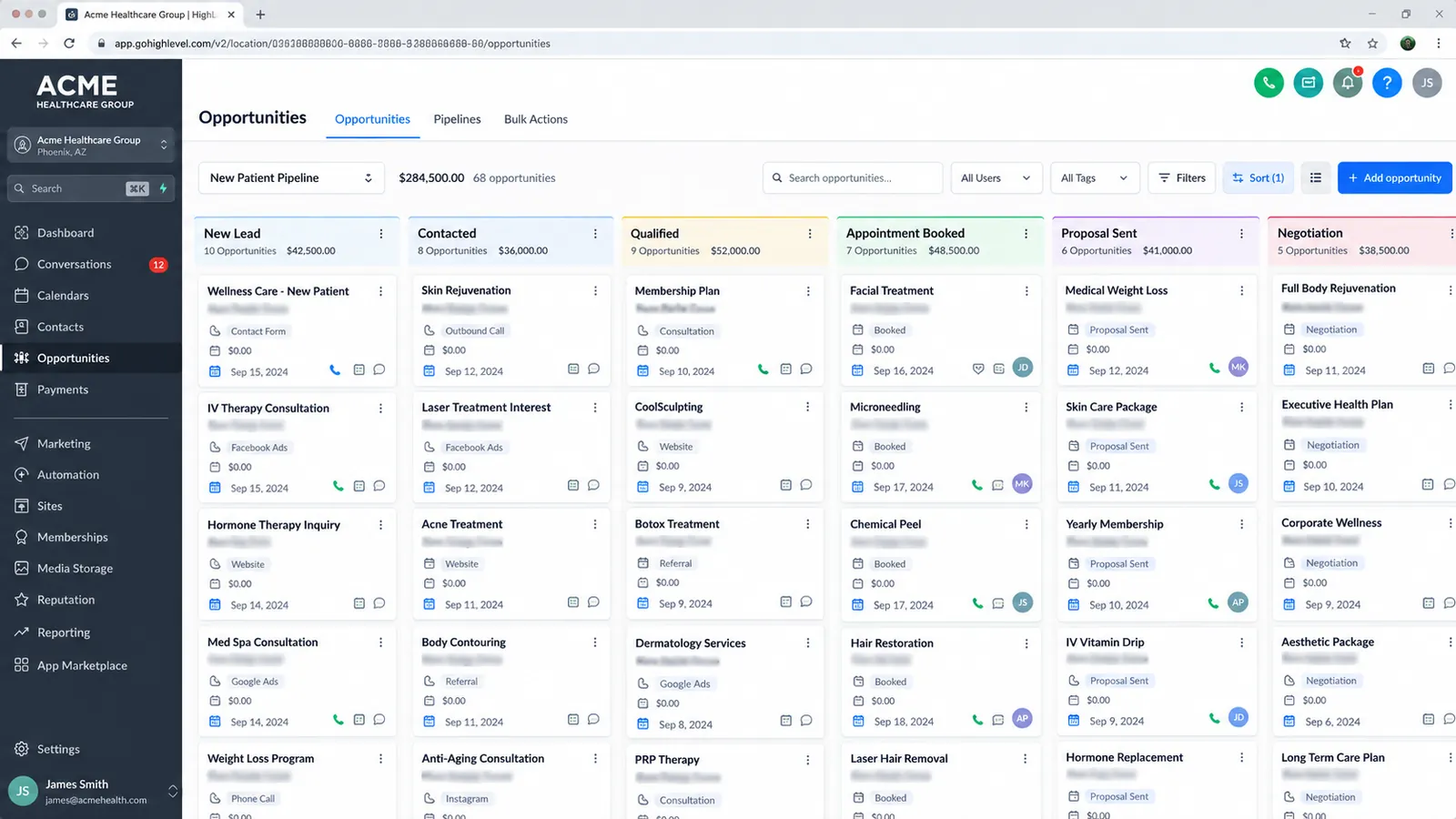
Pipeline and opportunity management got a real upgrade with Mobile App v4.0.0. Before that release, mobile pipeline access was closer to a read-only snapshot: you could see where deals stood but drag-and-drop editing lived on desktop. HighLevel’s Revamped Mobile App Experience documentation describes the v4.0.0 release adding a genuine Kanban-style pipeline view, where opportunities can be dragged between stages, notes added, and deal values updated directly from the phone. That’s a materially different capability from an earlier “check the pipeline, wait until you’re at a desktop to move anything” workflow, and it’s the single biggest functional gap the redesign closed.
Calendar access lets you view scheduled appointments, inspect the details of an existing booking, and manually add a new appointment from the app. The homepage in the redesigned experience surfaces “Today’s Appointments” as one of its fixed widgets, so a user opening the app first thing doesn’t have to dig through a menu to see what’s on the calendar. Reputation management — sending review requests by email or SMS, and responding to reviews that come in — is present as its own module rather than a buried setting, which matters for agencies where review generation is part of the deliverable they’re managing for a client.
Contact records carry real depth on mobile, not a stripped-down card. You can add, edit, and delete contacts, assign them to pipelines, add them to existing campaigns or workflows, create tasks against a contact, book appointments, and add notes. What you can’t do — covered in detail below — is build the workflow a contact gets added to. Invoicing works too, with one prerequisite worth flagging early: the invoice and payment-collection features only become usable once a Stripe account is connected to the sub-account. Without that connection, the invoicing module exists in the navigation but doesn’t have anywhere to route a payment.
What can’t the mobile app do?
The single clearest documented limitation is workflow building. HighLevel’s own support content states plainly that you can add a contact to an existing workflow from the mobile app, but creating a new workflow or editing an existing one’s logic — triggers, conditional branches, delay steps, the actual automation you’d configure for a client — requires the desktop app. This isn’t a minor omission. Workflow logic is arguably the highest-leverage configuration surface in the entire platform, and it’s fully absent from the phone. If you’re on a job site and realize a client needs a new automated follow-up sequence, the honest answer is that it waits until someone opens a laptop, or gets handed to a teammate who has one open already.
Funnel and website building follows the same pattern. Neither shows up among the modules HighLevel documents inside the app’s Sales & Operations or Marketing & Growth categories, and that tracks with what the drag-and-drop page builder actually requires — a canvas, precise element positioning, and the kind of layout control that doesn’t translate to a phone screen. Snapshot import and export, the mechanism agencies use to clone a pre-built account structure into a new client sub-account, is similarly desktop-bound; it’s an infrastructure-level operation, not a day-to-day task the mobile redesign was built around.
Reporting depth is the quieter gap. The mobile homepage surfaces a six-month revenue chart and a handful of fixed widgets — tasks due, pipeline value, unread messages, today’s appointments — which covers a fast morning glance well. It doesn’t cover the kind of custom report a client asks for by name, filtered by date range and sub-account and campaign source, the sort of thing a desktop dashboard was actually built to produce. If your daily habit involves pulling a specific filtered report before a client call, that habit stays on desktop.
Two other limitations are worth flagging because they’re timing-sensitive rather than permanent. First, HighLevel’s own v4.0.0 rollout documentation states that homepage widget customization wasn’t available at initial launch and was planned for a later date, and that Universal Search initially covered only conversations, contacts, and opportunities, with payments and calendars added afterward. Second, the Ask AI mobile assistant — the app’s built-in tool for drafting content and creating records by conversational command — was initially restricted to Agency Admin roles rather than every user, per the same documentation. Both of these are the kind of detail that can change between the writing of this guide and when you’re reading it, so it’s worth checking current behavior in your own account rather than assuming either limitation is still exactly as documented here.
How does the redesigned navigation actually work?
Mobile App v4.0.0 replaced the old left-hand navigation menu with a top bar and a four-column App Drawer, grouped into four categories: Insights & Productivity, Communication, Sales & Operations, and Marketing & Growth. That’s a real structural change, not a cosmetic one — the old version required scrolling a single long list to find a module; the new grid groups related functions so Conversations and Communication tools sit together, separate from Sales & Operations items like Contacts, Opportunities, Pipelines, and Invoices. Users can pin up to four favorite modules to the homepage for one-tap access, which matters more than it sounds for someone who opens the same two or three modules dozens of times a day.
The homepage itself functions as what HighLevel’s documentation calls a “command center” — a dashboard-style landing screen with fixed widgets for tasks due, opportunity pipeline value, unread messages, and today’s appointments, plus a six-month revenue performance chart. Eight quick-action shortcuts sit below that for creating a new contact, opportunity, task, or message without navigating into a module first. Universal Search spans the top of the experience, searching across conversations, contacts, and opportunities with context-aware results and a memory of recent queries — though, as noted above, its coverage of the full platform expanded in phases rather than launching complete.
Ask AI, the redesign’s built-in assistant, handles content drafting (social posts, emails, ad copy), record creation and editing through conversational commands, and image generation, with chat history preserved across sessions. It’s a genuinely different interaction model from tapping through menus — asking the assistant to “create a task for following up with [contact] tomorrow” instead of navigating to the task module and filling out a form. Whether that’s faster in practice depends on how precisely the assistant interprets a given request, which is the kind of thing worth testing against your own account’s real data rather than taking on faith from documentation.
What does app store data actually show?
Apple’s App Store lists the HighLevel app at 4.5 out of 5 stars from roughly 3,700 ratings, per the App Store listing as of this writing. That’s a reasonable signal for an agency-facing B2B tool, though app store ratings skew toward users motivated enough to leave a review in either direction, so treat the number as directional rather than a scientific measure of typical satisfaction. The Google Play listing carries its own rating and review count, though the specific figures shift often enough that we’re not citing a stale number here — check the live listing for current data rather than trusting a screenshot from months ago.
What’s more useful than the star rating is what the listing description emphasizes, since it reflects what HighLevel itself considers the app’s core pitch: lead capture through landing pages, surveys, forms and calendars; automated lead messaging across voicemail drops, calls, SMS, email, and Facebook Messenger; and built-in payment collection, appointment scheduling, and analytics tracking. That description matches the module list above closely — it’s describing the same conversations, calendar, and payments functionality documented in the help center, not a different feature set dressed up for the store listing.
If you’re evaluating whether the app fits how your team actually works, HighLevel’s own Mobile App feedback and ideas board is worth a look before you commit to a workflow assumption — it’s where users request specific missing functionality directly, and it’s a more current signal of what’s genuinely absent than any third-party guide, this one included, since app functionality changes between writing and reading.
What changed in notifications and contact records under v4.0.0?
Two smaller changes in the v4.0.0 redesign matter more in daily practice than their billing suggests. Push notification controls became more granular — third-party coverage of the rollout (not HighLevel’s own primary documentation, so treat this as directional rather than confirmed spec) describes per-module notification settings rather than a single blanket on/off toggle, which matters for a user managing several client sub-accounts who wants alerts for new conversations but not for every calendar change. If your team has complained about notification fatigue from the app, checking the current per-module settings is worth doing before assuming the app can’t be tuned.
Contact records also consolidated. Where the previous version split a contact’s custom fields, conversation history, and appointment data across separate tabs or screens, the same third-party rollout coverage describes those three data types now living on a single scrollable contact page. Practically, that means a user pulling up a lead before a callback doesn’t have to tap between three different views to see what fields are filled in, what the last message said, and whether an appointment is already booked — it’s one screen, one scroll. This is the kind of interface change that doesn’t show up in a feature list but shows up directly in how fast someone can prep for a call.
Neither change is documented with the same primary-source certainty as the workflow limitation or the Kanban pipeline addition above, since both come from third-party rollout writeups rather than HighLevel’s own help articles describing them explicitly. Worth confirming against your own account’s current behavior rather than treating either as a guaranteed spec, especially since HighLevel has continued shipping incremental changes to this redesign past its initial release.
How should a team set up notifications for real response speed?
The app’s usefulness for lead response hinges on notification setup more than any other single setting, and it’s worth being deliberate about it rather than accepting the defaults. A missed-call text-back or a new form submission is only as fast as the alert that tells someone to look at their phone — if push notifications are muted, throttled by the phone’s own battery-optimization settings, or buried under a generic “HighLevel” notification group with everything else, the underlying speed advantage of having a mobile inbox disappears in practice even though the feature technically exists.
A few settings worth checking on both the app side and the phone’s own OS settings: confirm notification permissions are fully granted (not just “allow while using,” which can silently drop alerts when the app isn’t in the foreground), check the phone’s battery-optimization or “Doze mode” exemption list so the OS doesn’t defer notification delivery to save power, and if the granular per-module controls mentioned above are available in your account, turn on Conversations and Opportunities alerts specifically rather than leaving every module’s notifications at a single default level. None of this is GoHighLevel-specific advice so much as general mobile-app hygiene, but it’s the kind of setup step that determines whether “the app supports fast lead response” is true in practice for a given agency or just true in theory.
Where the app fits into an agency’s daily operations
For an agency running client sub-accounts, the practical split is fairly clean: build and configure on desktop, respond and react on mobile. Setting up a new client’s pipeline stages, writing the automation that routes their leads, building their booking funnel — that’s desktop work, done once or occasionally revised. Answering a lead’s text within minutes of it arriving, moving a deal to the next stage after a call, checking whether today’s 2pm still has a client on the books, replying to a new Google review before it sits unanswered for a day — that’s the daily-use case the mobile app is actually built for, and it handles it well based on the documented feature set.
That split matters for how an agency scopes onboarding and support work. GoHighLevel expert support from Autoesta and similar implementation partners typically build the desktop-side configuration first — workflows, pipelines, funnels, snapshots — precisely because that’s the layer the mobile app can’t touch, and getting it right the first time matters more when a client’s day-to-day team will only ever interact with the mobile-accessible pieces of it. The same logic applies to ongoing automation work: GoHighLevel automation services from HighLevel Automation Team live entirely in the desktop-only layer of the platform — workflow logic, triggers, integrations — that mobile users depend on without ever seeing how it’s built.
For aibrevo’s own clients, the practical guidance is similar: scope the desktop build correctly during setup, because that’s where the leverage lives, and treat mobile as the interface your team and your clients’ teams will actually touch most days once the build is done. Our GoHighLevel implementation services page covers what that initial desktop-side build typically includes, and the GoHighLevel implementation cost guide breaks down what that work costs before mobile ever enters the picture.
Should reporting or team-management decisions happen from mobile?
Generally, no — not because the app can’t display the numbers, but because the depth doesn’t match what a real reporting decision needs. The homepage’s six-month revenue chart and fixed widgets are built for a fast morning check, not for the kind of filtered, multi-variable report a leadership team reviews before a strategy call. If your agency’s habit is pulling a specific report — leads by source, conversion rate by sub-account, revenue by campaign over a custom date range — before making a resourcing or ad-spend decision, that habit belongs on desktop, where the reporting module has the filtering depth to actually answer the question rather than approximate it.
Team and role management carries a similar caution. Mobile lets you work within your assigned role’s permissions, but broader account administration — adding users, adjusting permission sets, managing sub-account structure across a multi-location or white-label build — is the kind of infrastructure change worth making deliberately, at a desk, with the full settings interface visible, rather than mid-commute on a phone screen. Nothing in HighLevel’s documentation explicitly forbids account administration from mobile browser access, but the app’s own module list doesn’t build toward that use case the way it builds toward conversations and pipeline.
The bottom line on what to expect from the app
The GoHighLevel mobile app earned its 2026 redesign. Version 4.0.0’s Kanban pipeline view, restructured navigation, and command-center homepage closed real gaps that existed in earlier versions, where pipeline access in particular was closer to a read-only snapshot than a working tool. What it didn’t do — and what HighLevel’s own documentation is upfront about — is turn the phone into a full replacement for desktop configuration work. Workflow building, funnel and website design, snapshot management, and deep custom reporting stay on desktop, by design rather than oversight, because those are precision tasks that genuinely need a bigger screen and a mouse.
The practical takeaway for an agency evaluating the app: build the account architecture — pipelines, workflows, funnels, snapshots — on desktop, get it right, and then let the mobile app carry the daily operational load of conversations, deal movement, calendar checks, and reputation management that it’s actually built for. Anyone quoting a client on what the mobile app “can do” should be specific about that split rather than promising a phone-first CRM experience the app was never designed to deliver.