
 By Alpit Patel and the aibrevo team · September 17, 2026 · 22 min read
monday.com Custom Fields & Formulas, Explained
How monday.com's column types actually work — text, number, status, dropdown, date, formula, mirror and connect boards — plus real formula syntax for calculated deal values and weighted pipeline scoring.
Key takeaways
- monday.com's column types split into two groups that behave differently: static fields you type into directly (text, number, status, dropdown, date) and computed fields monday.com calculates for you (formula, mirror) — mixing up which is which is the most common build mistake.
- The Formula column is read-only, gated to Pro and Enterprise plans, capped at 10,000 characters per formula, and its output can't be pulled into automation conditions — plan around those limits before you design a board, not after.
- A weighted pipeline value — deal value multiplied by stage probability, summed across open deals — is a five-minute IF/SWITCH formula that gives leadership a more honest revenue number than raw pipeline value alone.
- Formula columns that reference a mirror column will go blank whenever the underlying Connect Boards link is empty, which is the single most common 'why did my formula break' support question in monday's own community forum.
- Formulas can't be mirrored onto other boards, so a cross-board CRM usually needs the same calculation rebuilt more than once, not shared from a single source of truth.
monday.com’s custom fields split into two groups that behave completely differently: static fields you fill in by hand (text, number, status, dropdown, date) and computed fields the platform calculates for you (formula, mirror). Most build problems trace back to treating a computed field like a static one, or the reverse — trying to type a value into a formula cell, or expecting a mirror column to update something it can’t touch. Understanding which column type does what, and where the Formula column’s real limits sit, is what separates a monday.com CRM that actually reports weighted pipeline value from one where every number needs a manual spreadsheet export first.
What monday.com actually means by “custom fields”
monday.com calls its columns “custom fields” because you choose which ones to add per board — there’s no fixed schema the way a legacy CRM enforces one. The column types that matter for a sales or CRM build fall into a few groups:
- Text and long text — free-form input, no validation.
- Number — numeric input, supports currency formatting and basic aggregation (sum, average) in the board footer.
- Status — a labeled, colored dropdown, usually driving a Kanban-style pipeline view.
- Dropdown — similar to status but supports multi-select and doesn’t drive the same color-coded board views.
- Date — a single date or date range, the backbone of timeline and calendar views.
- Connect Boards — links an item on one board to an item on another board. This is the relationship itself, not a display of any field.
- Mirror — reads a specific column from the item a Connect Boards column links to, and displays it here. Read-only, and entirely dependent on the connect column underneath it.
- Formula — calculates a new value from other columns on the same board using functions and operators. Also read-only.
The first five are static: a person fills them in, and nothing recalculates automatically. The last three are computed, in the sense that monday.com generates or pulls their values rather than a person typing them directly. That distinction is the single most useful mental model for scoping a build, because static fields are cheap to add and computed fields carry real dependencies that break in specific, predictable ways.
The static fields aren’t interchangeable, either, and picking the wrong one for the job is a common early-build mistake. Status and dropdown look nearly identical in a column picker, but they behave differently once a board is live: status supports single-select only and drives the colored Kanban groupings most sales pipeline views rely on, while dropdown supports multi-select and doesn’t participate in those same board-color groupings — using dropdown for a deal’s pipeline stage means losing the visual Kanban board entirely. Number columns support currency and percentage formatting and can be summed or averaged directly in a board’s footer without any formula at all, which covers a surprising share of what teams reach for a formula column to do. Date columns support ranges as well as single dates, and they’re what timeline and calendar views key off — a text column formatted to look like a date won’t work in either view, since monday.com reads the actual date column type, not the string.
Reading and writing custom fields through the API
Every custom field on a board is also reachable through monday.com’s GraphQL API, not just the interface — which matters for any integration or migration work touching field data programmatically. Each column has a stable id (visible in the column settings or via an API query), and reading its value means querying column_values on an item and filtering to that column id; writing means calling change_column_value or change_multiple_column_values with a JSON payload shaped to that column’s type — a status column expects an index or label, a date column expects an ISO date string, a numeric column expects a plain number. Formula and mirror columns are readable through the API the same way static columns are, but neither accepts a write: attempting to change_column_value on a formula column returns an error, since the calculated value only ever comes from the formula itself. This is the same read-only boundary that blocks formula output from driving an automation — the API enforces it at the same layer the automation engine does.
The Formula column: syntax and what it can actually do
The Formula column lets you calculate a value from other columns on the same board, and it’s only available on monday.com’s Pro and Enterprise plans — Basic and Standard don’t include it at all, which is worth confirming before you scope a CRM build assuming you’ll add calculated fields later.
Syntax references other columns by wrapping their column title in curly braces, and combines them with functions:
IF({Deal Value} > 50000, "Enterprise", "Standard")Numeric operations use functions rather than bare operators for most math (MULTIPLY, DIVIDE, SUM, MINUS), though basic arithmetic symbols work inside simpler expressions too. A common pattern is nesting an IF inside another function to build layered logic:
IF({Budget} < {Cost}, "Over Budget", ROUND(DIVIDE({Cost},{Budget})*100, 2))For mapping several discrete values to different outputs — say, a status label to a numeric weight — the SWITCH function is usually cleaner than a chain of nested IF statements:
SWITCH({Stage}, "Prospecting", 10, "Qualified", 35, "Proposal", 65, "Negotiation", 85, "Closed Won", 100, 0)monday.com’s own function reference groups the available functions into math (SUM, MULTIPLY, DIVIDE, ROUND), text (CONCATENATE, TEXT), date (ADD_DAYS, SUBTRACT_DAYS, FORMAT_DATE, WORKDAYS), and logical (IF, AND, OR, SWITCH) categories, and monday’s use-case documentation walks through several of these applied to real board scenarios. A third-party breakdown worth reading alongside the official docs is Xebia’s formula column use-case guide, which shows commission and month-over-month variance formulas built the same way.
Three limits matter more than the syntax itself. First, the formula builder caps out at 10,000 characters — plenty for most single calculations, but a reason to avoid stacking unrelated logic into one mega-formula. Second, a formula column is read-only end to end: nobody, including an admin, can type a manual override into a formula cell, which is a feature when you want a trustworthy number and a problem when someone needs to flag an exception. Third, and least obvious until it bites you: a formula column’s calculated output can’t be pulled into an automation’s trigger or condition. If you need “when weighted deal value exceeds $20k, notify the sales manager,” you can’t point an automation directly at the formula column — you generally need to recreate the threshold logic on a column type automations can actually read, which for monday.com CRM implementation work usually means a parallel status or number column maintained by a second formula or a manual step.
Worked example: calculating deal value and weighted pipeline
The most common CRM use case for the Formula column is a calculated field that combines two or more inputs into one number leadership actually wants to see. Two versions come up constantly.
Calculated total deal value, where a deal’s true value isn’t just one number but quantity times unit price, optionally with a discount applied:
MULTIPLY({Quantity}, {Unit Price}) - MULTIPLY(MULTIPLY({Quantity}, {Unit Price}), {Discount %})This keeps the sales rep entering the inputs they actually know at deal-creation time — quantity, list price, negotiated discount — rather than asking them to do the math and type in a final number that drifts out of sync the moment the discount changes.
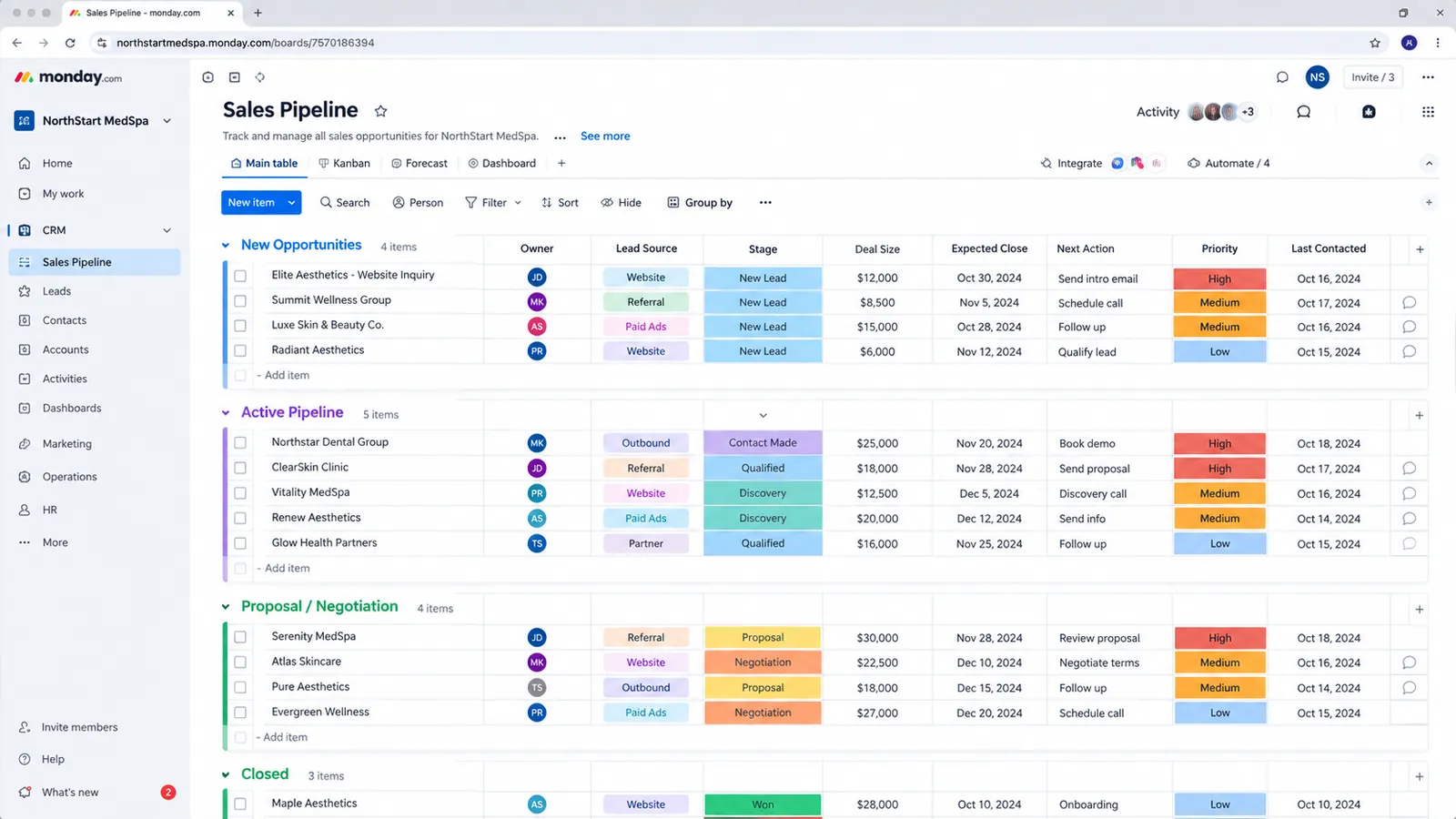
Weighted pipeline value is the more consequential one, because it changes how a sales leader reads the pipeline. Raw pipeline value — the sum of every open deal’s value — implicitly assumes every open deal closes, which no real pipeline does. Weighted value multiplies each deal by a probability tied to its current stage, then sums the result, giving a number that reflects how likely the pipeline actually is to convert. monday’s own sales pipeline documentation describes this as deal value multiplied by close probability. A typical build maps probability to the existing status column with a SWITCH:
MULTIPLY({Deal Value}, SWITCH({Stage}, "Prospecting", 0.1, "Qualified", 0.35, "Proposal Sent", 0.65, "Negotiation", 0.85, "Closed Won", 1, 0))The illustrative example below shows why this matters in dollar terms, not just methodology. Four open deals worth $180,000 combined look like a healthy pipeline on a raw sum — but weighted by stage, the realistic forecast is less than half that.
That 46% gap between raw and weighted totals is the whole argument for building this formula. A forecast built on raw pipeline value routinely overstates what actually closes, and a weighted-value column — summed at the board footer — gives leadership a number that’s still optimistic (probabilities are estimates, not certainties) but far closer to reality than “everything in the pipeline closes.”
Building the weighted pipeline board, step by step
Getting from a plain sales board to a working weighted-value column takes roughly five steps, and skipping the ordering here is where most self-built versions go wrong:
- Confirm the plan tier first. Check that the account is on Pro or Enterprise before designing anything around a formula column — building the whole board around a calculated field only to discover it needs a plan upgrade is a preventable delay.
- Standardize the stage labels before writing the formula. A
SWITCHformula maps each status label to a probability by exact text match, so renaming a stage later (or a rep typo-ing a custom label into an otherwise-standard status column) silently breaks the mapping. Lock the stage list down first. - Confirm Deal Value is a real number column, not text. A currency-formatted number column can go straight into a
MULTIPLY; a text column holding “$45,000” as a string needs to be corrected before any formula will read it as a number. - Write the formula against a small test set first. Build the
SWITCHmapping against three or four items with known stages and values, and confirm the weighted output matches hand math before rolling it out board-wide — catching a probability typo on four rows is fast, catching it after 300 deals have been weighted wrong for a quarter is not. - Sum the column at the board footer, and mirror it to a dashboard if leadership needs it outside the board. monday.com sums numeric and formula columns automatically in the footer; a separate dashboard widget is only needed if the number has to live somewhere leadership checks without opening the sales board itself.
Following that order also makes the formula easier to hand off — anyone auditing the board later can read the stage list, confirm it matches the SWITCH statement, and trust the output without re-deriving the logic from scratch.
Which column types can a formula actually read?
A formula can read Number, Text, Date, Status, People, and Time Tracking columns, per monday.com’s formula column documentation and community threads on the same limits. Autonumber, Tags, and Files columns aren’t supported as inputs. That last group catches people out in CRM builds specifically, because tags and files are exactly the columns teams reach for to categorize deals and attach proposals, and a formula that needs to react to either has to key off a Status or Dropdown-style column set alongside them instead.
The other input rule worth internalizing is how blanks behave. When a column a formula references is empty, monday.com passes a null value into the calculation, and most math operations on a null return an error-like result rather than zero. A weighted-value formula that multiplies Deal Value by a stage probability will show nothing useful on any new deal where Deal Value hasn’t been entered yet. The fix is the same guard used for empty mirror columns:
IF({Deal Value}="", 0, MULTIPLY({Deal Value}, SWITCH({Stage}, "Prospecting", 0.1, "Qualified", 0.35, "Proposal Sent", 0.65, "Negotiation", 0.85, "Closed Won", 1, 0)))Guarding every formula input that a rep might legitimately leave empty at deal creation is dull work, but it’s the difference between a footer total that’s trustworthy on day one and one nobody believes until someone manually explains why it’s blank on half the board.
How do you build a stale-deal or deal-aging flag?
Use the date functions to turn a Last Contacted date column into a number of days, then a second condition to turn that number into a label reps can filter on. Deal aging is one of the highest-value uses of the formula column in a sales board because it converts a passive date into an active signal, and it needs nothing beyond two functions monday.com already documents: TODAY() for the current date and DAYS() for the gap between two dates.
IF({Last Contacted}="", "No activity logged", DAYS(TODAY(), {Last Contacted}))That returns the number of days since last contact, or a plain-text label when the date was never filled in. To turn it into a filterable flag, wrap the comparison:
IF({Last Contacted}="", "No activity logged", IF(DAYS(TODAY(), {Last Contacted}) > 14, "Stale", "Active"))The 14-day threshold is a placeholder; a sales cycle measured in months needs a much longer window than one measured in days, so set it from your own average time between touches rather than copying a number. Confirm the argument order in a test item before rolling the formula out board-wide, since reversing the two dates gives a negative number that looks plausible until someone notices every deal is “minus 3 days” old.
There’s one limit to plan around, and it connects directly to the read-only rule covered earlier. Formulas built on TODAY() recalculate as time passes, but that recalculation doesn’t fire an automation at midnight when a deal crosses the threshold, per monday’s own documentation and community discussion of this behavior. If the goal is “notify the account owner when a deal has gone stale,” the formula alone won’t do it. The reliable pattern is to let the formula drive what people see and filter on, and to run the notification from something automations can read: a date column with a “when date arrives” trigger, or a scheduled recurring automation that checks a status value. The formula shows you the problem, and a separate automation acts on it.
How do formula, status, and automation columns divide the work?
Each one has a job the others can’t do, and confusing them is what produces boards that look sophisticated and don’t actually change anyone’s behavior. This is the division that holds up across most CRM builds:
| Column type | Best used for | Can trigger an automation? | Can be edited by a rep? |
|---|---|---|---|
| Status | Pipeline stage, priority, flags a workflow acts on | Yes | Yes |
| Number | Deal value, quantity, discount inputs | Yes (on change) | Yes |
| Date | Last contacted, close date, renewal date | Yes (when date arrives) | Yes |
| Formula | Weighted value, deal aging, calculated labels | No | No |
| Mirror | Showing data from a connected board | No | No |
Read the table left to right as a design rule. Anything that needs to start an action belongs in a column a rep or an automation can change. Anything that needs to display a calculated result belongs in a formula. When a business rule needs both (a threshold that both displays and triggers), it gets built twice: once as a formula for the reader, and once as a status or date column that an automation owns.
How should you document formulas so they survive handoffs?
Put the intent of each formula in the column description, name helper columns by what they do, and keep a small test group on every board. A formula is easy to write and hard to explain after the fact, and a 300-character nested SWITCH that made sense to its author in March is opaque to whoever inherits the board in October. Three habits prevent most of that:
- Write the plain-language rule in the column description, for example “Weighted value: Deal Value times stage probability from the Stage column; blank if no Deal Value.” Anyone hovering over the column header can see what it’s supposed to do and compare it to what it actually does.
- Name columns for their business meaning, not their formula, and avoid renaming them once formulas reference them, since a renamed column breaks references silently rather than throwing an error.
- Keep a pinned test group at the top of the board with three or four items covering the edge cases: a blank Deal Value, a brand-new deal with no Last Contacted date, a Closed Won deal, and a Closed Lost deal. Every time a formula changes, glance at that group first. It takes ten seconds and catches most regressions before they reach real pipeline numbers.
Those three habits cost almost nothing at build time and are the difference between a board that a second admin can maintain and one that only its original builder dares to touch.
How Formula, Mirror and Connect Boards actually interact
A formula on its own board can only read columns that live on that board. If the value you need lives on a different board — a delivery board’s project status, say, feeding back into a sales board’s deal record — the formula can’t reach it directly. Getting there takes two steps: a Connect Boards column links the item on one board to an item on another, and a Mirror column then reads a specific field from that connected item and displays it locally. Only after the mirror column exists can a formula on the same board reference it as an input.
This chain is also the most common source of a “broken” formula that isn’t actually broken. If the Connect Boards link on an item is empty — a deal that hasn’t been linked to an onboarding item yet, for instance — the mirror column has nothing to display, and any formula depending on that mirror returns blank rather than an error. The fix is wrapping the formula in an IF that checks for the blank case first, something like IF({Mirror Column}="", 0, {Mirror Column}), rather than assuming the mirror will always have a value. One more limit worth planning around: formula columns themselves can’t be mirrored onto other boards. If three different boards all need the same weighted-pipeline calculation, the formula gets rebuilt on each board rather than shared from a single source — a real design constraint on any multi-board CRM build, and one that shows up again in monday.com’s automation and integration action limits once those rebuilt formulas start feeding cross-board automations.
Formula column availability by plan tier
Because the Formula column only ships on Pro and Enterprise, it’s worth confirming plan tier before scoping any build that leans on calculated fields — a detail easy to miss if a team is quoting monday.com off its lower-tier seat pricing.
Common mistakes worth avoiding
A handful of patterns cause most of the formula and custom-field problems teams run into. Building a formula that references a mirror column without checking for the blank case is the single most frequent one — it produces a column that looks broken the first week a new item hasn’t been linked yet, rather than actually being broken. Stacking too much unrelated logic into one formula is the second: a formula doing deal-value math, stage-probability weighting, and a text label all at once becomes hard to audit and slower to edit than three smaller formulas would be, even though nothing stops you from writing it that way. Assuming a formula’s output can drive an automation is the third, and it’s an easy one to make because nothing in the interface warns you until the automation simply doesn’t fire — the fix is almost always maintaining a parallel status or number column that both the formula and the automation can reference independently.
A subtler mistake is over-mirroring: pulling a dozen fields from a connected board into mirror columns “just in case,” which slows boards down and makes it harder to tell which mirrored field actually feeds a live formula versus which one is unused clutter. A lean build mirrors three or four fields that formulas or dashboards actually consume, not everything the connected board happens to have.
A fifth mistake worth naming separately: changing a column’s underlying type after formulas already reference it. Converting a number column to text, or swapping which status labels exist on a stage column, doesn’t just change how the column displays — every formula reading that column has to be checked, and in practice, teams that make this change mid-quarter usually discover the break weeks later when a weighted-value total looks wrong, not immediately. Treating the column list behind a formula as effectively locked, and adding new columns alongside rather than repurposing existing ones, avoids this category of problem entirely.
Troubleshooting checklist for a formula that isn’t working
When a formula column returns blank, an error, or an unexpected value, working through these in order covers most real causes: confirm every referenced column name inside the curly braces matches the actual column title exactly, since a renamed column breaks the reference silently rather than throwing an error; check whether the formula depends on a mirror column and whether the underlying Connect Boards link is populated on the specific item in question; verify that any column expected to hold a number is actually a number column and not text formatted to look like one; count parentheses if the formula uses nested functions, since an unclosed parenthesis is one of the most common syntax errors in longer formulas; and check the account’s plan tier if the formula column option isn’t appearing in the column picker at all. Most formula problems trace back to one of these five causes rather than a genuine bug in the formula engine itself.
When custom-field logic is worth outsourcing
Weighted pipeline scoring and calculated deal values are two-column problems on paper, but a cross-board CRM where formulas depend on mirrors that depend on connect columns across sales, onboarding and delivery adds up to real architecture work — the kind that’s easy to get 80% right and then spend weeks chasing down blank formulas and duplicate items caused by the missing 20%. That’s the same category of configuration work that comes up across CRM platforms generally, not just monday.com — teams running client delivery on GoHighLevel instead face an equivalent set of field, pipeline and automation decisions, which is exactly what HighLevelAutomationTeam’s GoHighLevel agency setup service and Autoesta’s GoHighLevel setup for agencies are built to handle on that platform.
For a monday.com-specific build, the fastest way to avoid the mistakes above is scoping the board architecture — which fields are static, which are computed, and which formulas depend on which mirrors — before a single column gets added. aibrevo’s monday.com CRM implementation work starts there, and the monday.com CRM implementation cost guide breaks down what that scoping and build work typically costs by project size.
If monday.com itself isn’t a settled decision yet — some teams land there because they’re already using it for delivery work and want sales connected to the same boards, others end up choosing a more relational tool instead — the monday.com vs Airtable comparison covers how the two platforms handle custom fields and calculated data differently, since Airtable’s linked-table model solves some of the cross-board dependency problems described above at the cost of a steeper setup curve. And if the question is simply whether monday.com counts as a “real” CRM once boards, formulas and automations are wired together properly, aibrevo’s guide to that exact question is worth reading before investing further build time either way.
None of this requires exotic configuration — a formula column, a handful of well-chosen mirror columns, and a locked-down stage list cover the large majority of what a sales team actually needs from custom fields on monday.com. The failure mode isn’t complexity; it’s skipping the dependency order above and discovering the gaps only after a quarter’s worth of deals have already been logged against a board that wasn’t built to support the reporting leadership expected from it.